What Is the Symbol for Wifi? Wireless Connection Icon
Introduction If you have ever looked at the top of your phone, the corner of your laptop screen, or the front of a wireless router, you have probably seen a small icon made of curved lines. Many people call it the Wi-Fi symbol, the wireless connection icon, or
Introduction
If you have ever looked at the top of your phone, the corner of your laptop screen, or the front of a wireless router, you have probably seen a small icon made of curved lines. Many people call it the Wi-Fi symbol, the wireless connection icon, or simply the internet icon. Understanding What Is the Symbol for Wifi? is useful because that tiny graphic communicates a lot of information in a very small space. It can tell you whether a device is connected, how strong the signal is, whether the connection is available, and sometimes whether a network requires a password.
In everyday use, the Wi-Fi symbol is one of the most recognizable technology icons in the world. It appears on smartphones, tablets, laptops, desktops, smart TVs, printers, gaming consoles, routers, and even home appliances. Although people often use the terms “Wi-Fi,” “wireless,” and “internet” interchangeably, the symbol itself usually refers specifically to a wireless local area network connection rather than the entire internet. A device can show the Wi-Fi icon while still being unable to reach websites, and it can lack the icon while still having mobile data or a wired Ethernet connection.
This guide explains the meaning, history, appearance, variations, and practical use of the wireless connection icon. It also covers how to read signal strength, how to troubleshoot missing icons, how the symbol differs from related icons, and how designers and accessibility professionals think about it. Whether you are a beginner trying to understand your device or a content creator writing about technology, this article gives a complete answer to What Is the Symbol for Wifi?
- What Is the Symbol for Wifi?
- History and Evolution of the Wireless Icon
- What the Wi-Fi Symbol Looks Like
- Where You Commonly See the Symbol
- Wi-Fi Symbol Variations by Platform
- Signal Strength and Connection Quality
- How to Identify Your Wi-Fi Status
- What to Do When the Symbol Is Missing
- Wi-Fi vs. Bluetooth, Cellular, and Airplane Mode
- Design, Branding, and Accessibility
- Tips and Best Practices
- Frequently Asked Questions
- Conclusion
What Is the Symbol for Wifi?
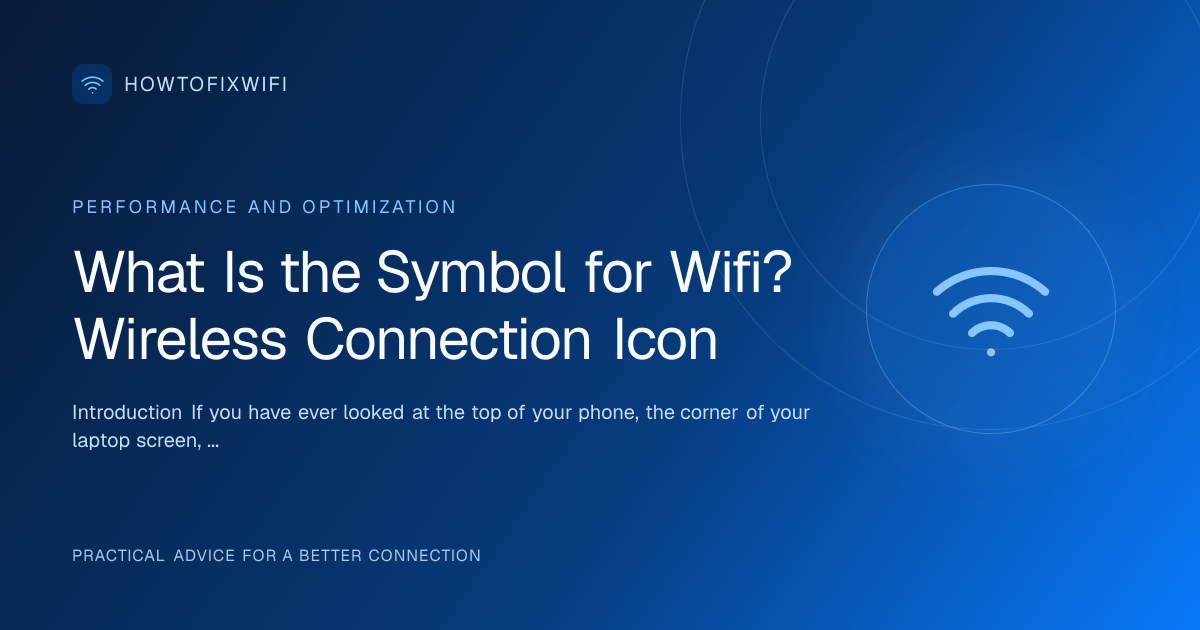
The most common answer to What Is the Symbol for Wifi? is a set of curved arcs radiating upward from a small dot. The arcs look like radio waves spreading outward from a central point. In many interfaces, the arcs are stacked in increasing size, creating a fan-like shape. The dot at the bottom represents the source of the wireless signal, while the arcs represent the reach or strength of that signal.
The icon is not a single legally fixed drawing. Different operating systems, device manufacturers, and app developers may use slightly different versions. Some icons use three arcs, some use four, and some use a simplified two-arc version. Some are filled in, some are outlined, and some change color to show status. Despite these differences, the general shape is widely understood as “wireless connection.”
It is important to distinguish the everyday Wi-Fi symbol from the official Wi-Fi logo used by the Wi-Fi Alliance. The official logo is more stylized and is used to certify that products meet Wi-Fi standards. The icon on your phone or computer is usually a user-interface symbol rather than a certification mark. That is why you may see different artistic styles across brands while still recognizing the same general meaning.
The symbol can also represent different states. A full set of arcs often means a strong connection. Fewer arcs or a dimmed icon can mean a weaker signal. A slash through the icon, an exclamation mark, or a question mark can indicate a problem. A lock symbol nearby may indicate a secured network. In short, the Wi-Fi icon is not just a label; it is a compact status indicator.
History and Evolution of the Wireless Icon
The wireless icon did not appear overnight. It evolved alongside wireless networking. Early wireless devices often used text labels, LED lights, or simple antenna drawings to indicate radio activity. As graphical user interfaces became more common, designers needed a quick visual way to show wireless status without using much screen space.
The idea of curved arcs comes from older radio and broadcast imagery. Radio waves have long been represented as curved lines spreading from an antenna. When personal computers and mobile devices added wireless networking, designers adapted that familiar visual language into a smaller, cleaner icon. The result was the now-familiar fan shape.
Over time, the icon became more standardized in meaning even if not in exact design. Operating systems began using similar shapes for Wi-Fi status. Mobile platforms popularized the status-bar icon, making it a daily part of modern life. As Wi-Fi became essential for work, education, entertainment, and communication, the icon became almost as recognizable as a battery symbol or a speaker icon.
Design trends also influenced the icon. Early icons were sometimes detailed or skeuomorphic, with shading and depth. Modern interfaces tend toward flat, minimal icons. This shift made the Wi-Fi symbol simpler and easier to scale across different screen sizes. Today, the same basic concept appears on tiny watch faces, large television interfaces, and embedded device displays.
What the Wi-Fi Symbol Looks Like
When people ask What Is the Symbol for Wifi?, they are often trying to describe something they have seen many times but never named precisely. The standard shape is usually described as three curved arcs above a dot. The arcs are concentric, meaning they share the same center point. They curve upward and outward, like ripples in water or sound waves moving away from a source.
Some designs use four arcs instead of three. Some use two arcs for very small displays. The dot may be a circle, a small square, or a rounded point. The arcs may be solid, outlined, or partially filled. In status bars, the icon may be white, black, blue, gray, or another color depending on the interface theme.
The number of visible arcs often relates to signal strength. A full icon may show all arcs brightly. A weaker connection may show fewer arcs or dimmed arcs. This makes the icon function as a mini gauge. However, the exact mapping between arcs and signal strength varies by device. One phone may show three full arcs for a strong signal, while another may show two arcs for the same network.
Because the icon is so familiar, designers must be careful not to make it too abstract. If the arcs are too thin, too close together, or too stylized, users may not immediately recognize them. Good icon design balances brand personality with instant recognition. The Wi-Fi symbol works because it relies on a shape people already associate with wireless transmission.
Where You Commonly See the Symbol
The wireless connection icon appears in many contexts. On smartphones, it is usually in the status bar at the top of the screen. On laptops, it may appear in the system tray, menu bar, or quick settings panel. On tablets, it is often near the battery and time indicators. On smart TVs, it may appear in network settings or during setup.
You may also see the symbol on physical devices. Routers often have an LED labeled with a wireless icon. Printers may display it when Wi-Fi is enabled. Smart home devices, thermostats, speakers, and cameras may use it to show that they are ready to connect. In packaging and manuals, the icon may indicate that a product supports wireless setup.
In software, the symbol appears in settings menus, network lists, browser status areas, and troubleshooting screens. A network list may show the icon next to each available wireless network. Some apps display it to indicate that they are operating in offline or online mode. In web design, a wireless icon may be used as a button for network-related actions, although designers should ensure the meaning is clear.
The symbol is also used in public spaces. Cafes, airports, hotels, and libraries may display it on signs to indicate that Wi-Fi is available. In these cases, the icon is often paired with text such as “Free Wi-Fi” or “Wireless Internet.” This combination helps users who may not recognize the icon alone.
Wi-Fi Symbol Variations by Platform
Although the core idea is the same, the exact wireless icon varies by platform. The table below summarizes common differences. These details can change with software updates, but the general patterns remain useful.
| Platform | Typical Icon Style | Common Location | Notes |
|---|---|---|---|
| Android | Fan-shaped arcs, often with signal bars or filled segments | Status bar and quick settings | May show a small “x” or exclamation mark when there is no internet |
| iOS / iPadOS | Curved arcs, sometimes with a lock or warning indicator | Status bar and Control Center | Can display “Wi-Fi” text in some settings screens |
| Windows | White or black fan icon, sometimes with a globe for internet status | System tray and quick settings | A globe icon may appear when connected to Wi-Fi but internet is unavailable |
| macOS | Menu bar Wi-Fi fan, often with signal strength levels | Menu bar and System Settings | Clicking the icon reveals available networks |
| Linux desktops | Varies by desktop environment and network manager | Panel or system tray | May use a generic wireless icon or a network manager-specific symbol |
| Routers and hardware | Printed or LED wireless icon | Device body or packaging | Often indicates hardware capability rather than current connection |
This variation is one reason users sometimes feel confused. A Windows laptop may show a globe when Wi-Fi is connected but the internet is down, while a phone may show an exclamation mark. The basic wireless icon remains familiar, but the status details differ. Learning your specific platform’s icons can prevent unnecessary troubleshooting.
Signal Strength and Connection Quality
The Wi-Fi symbol often doubles as a signal-strength indicator. In many interfaces, a fuller icon means a stronger signal, while a reduced icon means a weaker signal. However, signal strength is not the same as internet speed. A device can show full arcs and still have slow internet if the network is congested, the router is outdated, or the internet service provider is experiencing issues.
Signal strength is commonly measured in decibel-milliwatts, abbreviated dBm. Values closer to zero are stronger. For example, -30 dBm is excellent, -50 dBm is very good, -65 dBm is good, -70 dBm is fair, and -80 dBm or lower is weak. Most users never see these numbers, but the icon’s arcs are a simplified visual version of this measurement.
Several factors affect signal strength. Distance from the router is one of the biggest. Walls, floors, metal objects, mirrors, and appliances can weaken the signal. The frequency band also matters. The 2.4 GHz band travels farther and penetrates walls better, while the 5 GHz and 6 GHz bands often offer faster speeds at shorter distances. Interference from neighboring networks, Bluetooth devices, microwaves, and cordless phones can also reduce quality.
When troubleshooting, do not rely only on the icon. Run a speed test, check latency, and compare performance in different locations. If the icon shows full signal but performance is poor, the issue may be the router, modem, internet plan, or network congestion rather than wireless signal alone.
How to Identify Your Wi-Fi Status
If you want to know exactly what your wireless icon means, follow these steps. The exact menu names may vary, but the process is similar across devices.
- Look at the status bar or system tray for the wireless icon.
- Notice whether the arcs are full, partial, dimmed, or marked with a warning symbol.
- Open the quick settings, Control Center, or network menu to see the connected network name.
- Check whether the network name is followed by words such as “Connected,” “Secured,” or “No internet.”
- Open the full Wi-Fi settings page to view available networks and signal indicators.
- If the icon shows a warning, tap or click it for more details.
- Test a website or app to confirm whether internet access is working.
- If needed, forget and reconnect to the network, then check the icon again.
This process helps separate three different situations: no Wi-Fi connection, Wi-Fi connected but no internet, and Wi-Fi connected with good internet. Each situation may require a different fix. For example, if there is no connection, you may need to turn on Wi-Fi or select a network. If there is no internet, restarting the router or checking the modem may be more useful.
What to Do When the Symbol Is Missing
A missing wireless icon can be alarming, but it does not always mean the hardware is broken. Sometimes the icon is hidden by settings, disabled by airplane mode, or removed from the status bar to save space. In other cases, the wireless adapter may be turned off or the driver may need attention.
Start with simple checks. Make sure Wi-Fi is turned on. Disable airplane mode. Restart the device. Check whether the status bar is set to show the icon. On phones, some interfaces allow users to customize which icons appear, so the Wi-Fi icon may have been hidden accidentally.
If the icon is still missing, open the network settings and look for a Wi-Fi toggle. If the toggle is missing or grayed out, the wireless adapter may be disabled in BIOS, device manager, or system settings. On computers, updating or reinstalling the wireless driver can restore the icon. On mobile devices, a software update or reset of network settings may help.
Hardware issues are also possible. A damaged wireless card, antenna, or router can cause the icon to behave strangely. If other devices connect normally to the same network, the problem is likely with the device rather than the router. If no devices can connect, restart the router and modem, check cables, and verify that the internet service is active.
Wi-Fi vs. Bluetooth, Cellular, and Airplane Mode
The wireless connection icon is often seen alongside other status icons, and it is easy to confuse them. Each icon represents a different type of connection.
- Wi-Fi: Curved arcs from a dot, representing a local wireless network connection.
- Bluetooth: A stylized rune-like symbol, usually representing short-range device pairing.
- Cellular: Bars, signal waves, or a carrier name, representing mobile network service.
- Airplane mode: An airplane icon, indicating that wireless radios are turned off.
- Hotspot: May combine Wi-Fi arcs with a chain or link symbol, indicating that the device is sharing its connection.
Understanding these differences matters because each icon leads to different troubleshooting steps. A phone with no Wi-Fi icon but strong cellular bars can still access the internet through mobile data. A laptop with a Bluetooth icon but no Wi-Fi icon may be paired with accessories but disconnected from the network. Airplane mode disables multiple radios at once, so turning it off may restore several icons simultaneously.
Design, Branding, and Accessibility
From a design perspective, the Wi-Fi symbol is a lesson in universal communication. It must be recognizable at very small sizes, in different colors, and across cultures. Designers often use simple geometry to ensure clarity. The arcs need enough spacing to be distinguishable, and the dot needs to be visible as the anchor point.
Accessibility is also important. Color alone should not convey connection status. A colorblind user may not distinguish red from green, so warning states should include shapes, text, or patterns. Screen readers should announce network status in text rather than relying solely on the icon. In interfaces, tooltips or labels such as “Wi-Fi connected” can improve understanding.
For content creators and educators, describing the icon in words is helpful. Instead of saying “click the Wi-Fi thing,” say “select the wireless icon with curved arcs.” This makes instructions clearer for users who may not know the term. It also helps search engines and assistive technologies understand the content.
Branding can influence the icon, but usability should come first. A company may want a unique wireless icon, but if it strays too far from the familiar fan shape, users may hesitate. The best designs add subtle brand personality while preserving instant recognition.
Tips and Best Practices
Here are practical tips for users, designers, and writers dealing with the wireless connection icon.
- Learn your device’s specific Wi-Fi icon variations so you can quickly understand status changes.
- Remember that full signal bars do not guarantee fast internet.
- Use both the icon and an actual speed or connectivity test when diagnosing network problems.
- Keep router firmware updated to improve stability and security.
- Place routers centrally and away from heavy interference for better signal.
- When writing instructions, name the icon clearly and describe its shape.
- Do not rely on color alone to communicate Wi-Fi status in interface design.
- Use text labels alongside icons in public spaces and beginner-friendly guides.
- If the icon disappears, check simple settings before assuming hardware failure.
- Teach users the difference between Wi-Fi connection and internet access.
Frequently Asked Questions
What does the Wi-Fi symbol look like?
The Wi-Fi symbol usually looks like curved arcs radiating upward from a small dot. It resembles radio waves or ripples and is often called the wireless connection icon.
Is the Wi-Fi symbol the same on every device?
No. The general shape is widely recognized, but the exact number of arcs, colors, and warning indicators vary by operating system and manufacturer.
Does full Wi-Fi signal mean fast internet?
Not always. Full signal means a strong connection to the router, but internet speed also depends on the router, modem, network congestion, and service plan.
Why is my Wi-Fi icon missing?
It may be hidden in settings, disabled by airplane mode, turned off in network settings, or affected by a driver or software issue. Hardware problems are possible but less common.
What is the difference between Wi-Fi and internet?
Wi-Fi is a wireless connection between your device and a local network. Internet access is the ability to reach websites and online services through that network or another connection.
Can I use the Wi-Fi icon in my own design?
You can use a generic wireless icon, but be careful with trademarked logos. The everyday fan-shaped icon is commonly understood, while official certification logos have specific usage rules.
What does an exclamation mark on the Wi-Fi icon mean?
It often means the device is connected to Wi-Fi but cannot access the internet, or that the connection requires attention.
How can I improve a weak Wi-Fi symbol?
Move closer to the router, reduce interference, use the appropriate frequency band, update firmware, and consider a mesh system or Wi-Fi extender for large spaces.
Conclusion
So, What Is the Symbol for Wifi? It is the familiar curved-arc icon that represents a wireless connection. Usually shown as arcs radiating from a dot, it communicates availability, connection status, and often signal strength. While the exact design changes across platforms, its meaning is nearly universal. Understanding the icon helps users diagnose problems, designers create clearer interfaces, and writers explain technology more effectively. The next time you see those curved lines in your status bar, you will know that they represent much more than a simple picture—they are a compact summary of your wireless world.