What Does Wifi Button Look Like? Core Meaning
Introduction Most people connect to wireless networks every day without giving much thought to the small switch or key that makes it possible. Yet when the internet suddenly stops working, one of the first questions users type into a search engine is What Does
Introduction
Most people connect to wireless networks every day without giving much thought to the small switch or key that makes it possible. Yet when the internet suddenly stops working, one of the first questions users type into a search engine is What Does Wifi Button Look Like? Whether you are using a laptop, desktop computer, tablet, printer, or router, the WiFi button is the control that enables or disables your device’s wireless radio. Knowing what it looks like, where it is located, and what the indicator lights mean can save you time and frustration when troubleshooting connection problems.
This guide provides a complete, in-depth look at the WiFi button. We will explore its core meaning, physical appearance, common symbols, and placement across different types of devices. You will also find step-by-step instructions for using the button, a comparison table of control methods, troubleshooting advice, and answers to frequently asked questions. By the end of this article, you should be able to answer What Does Wifi Button Look Like? for nearly any device you encounter.
Table of Contents
- What Does Wifi Button Look Like? Core Meaning
- Physical Appearance of WiFi Buttons
- Common Symbols and Icons
- Indicator Lights and Colors
- Where to Find the WiFi Button
- Types of WiFi Buttons
- How to Use the WiFi Button: Step-by-Step
- WiFi Button vs. Airplane Mode
- Troubleshooting WiFi Button Issues
- Comparison Table: WiFi Control Methods
- Tips and Best Practices
- Frequently Asked Questions
- Conclusion
What Does Wifi Button Look Like? Core Meaning
When people ask What Does Wifi Button Look Like?, they are usually looking for a physical button, but the answer is not always simple. At its core, the WiFi button is a control that turns your device’s wireless network adapter on or off. It may be a mechanical switch, a capacitive touch area, a function key on a keyboard, or a software toggle inside an operating system.
The core meaning behind the button is straightforward. Pressing it once enables the wireless radio, allowing your device to detect and connect to nearby networks. Pressing it again disables the radio, which stops all WiFi communication. Some devices use a slider that moves between two positions, while others use a momentary push button that changes state with each press. When WiFi is active, an indicator light often glows blue, white, or green. When disabled, the light may turn amber, orange, red, or go dark entirely.
Understanding this core meaning helps you avoid confusion during troubleshooting. If your internet is not working, checking the WiFi button should be one of your first steps. It is entirely possible that the wireless radio was accidentally disabled by a bump in a bag, a pet walking across the keyboard, or a child pressing buttons. Because the button is sometimes small and easy to overlook, users often spend time resetting routers or calling technical support when the real issue was a disabled hardware switch.
Physical Appearance of WiFi Buttons
If you are searching for What Does Wifi Button Look Like?, you should know that physical WiFi buttons come in several shapes, sizes, and finishes. They are usually small because manufacturers design them to be unobtrusive, but their visual characteristics can vary significantly by brand and model.
Button Shapes and Sizes
Common shapes include circular push buttons about the size of a pencil eraser, oval or pill-shaped toggles found along the edges of laptops, small rectangular keys integrated into the keyboard deck, and slide switches that move from left to right or top to bottom. The button may be the same color as the surrounding chassis, making it blend in, or it may be accented with a contrasting color such as silver, black, or white to help it stand out.
Some laptops feature backlit buttons that glow faintly when the system is on, while others use a matte finish that shows no visual indication unless you look closely at the printed symbol. On rugged or industrial devices, the WiFi button may be larger and protected by a rubber cover to prevent accidental presses.
Button Labels and Markings
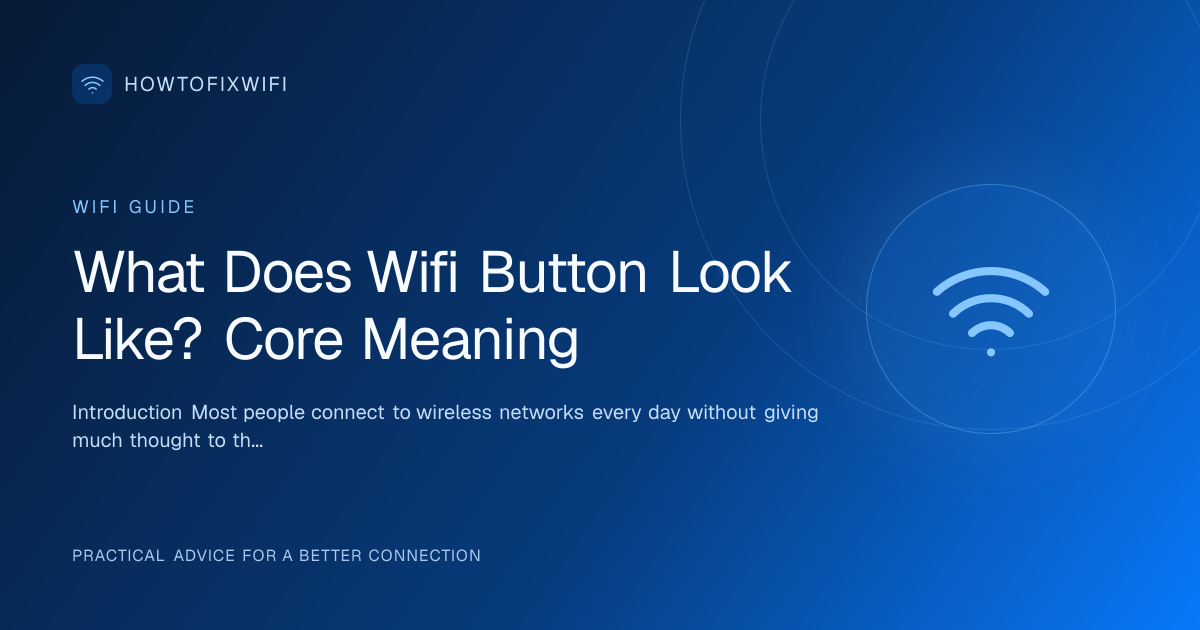
Most WiFi buttons do not spell out the word “WiFi” in full. Instead, they rely on symbols. You might see a radio wave icon consisting of a dot with three curved lines radiating outward, an antenna symbol, the letters “WLAN” on some business laptops, or a small wireless signal graphic embossed or printed next to the key. Because there is no universal standard for the exact size or color of the symbol, the best way to identify the button is to look for the familiar fan-shaped wireless icon.
Common Symbols and Icons
The symbol is often the most reliable clue when answering What Does Wifi Button Look Like? The standard WiFi symbol looks like a series of concentric arcs or a fan shape radiating from a central point. On a keyboard, this symbol is frequently printed on one of the function keys (F1 through F12). On some devices, the symbol appears inside a small circle or square. On others, it is etched directly into the plastic above the keyboard or near the power button.
It is worth noting that the WiFi symbol can sometimes be confused with the Bluetooth symbol. Bluetooth uses a stylized “B” made from bind runes, while WiFi uses the radio-wave fan. If you are unsure, check your device manual or look for an indicator light that changes color when you press the key. Some devices also use a tower with signal waves, which is another variation of the WiFi icon commonly found on enterprise laptops.
Indicator Lights and Colors
Many WiFi buttons are accompanied by an LED indicator light. This light tells you the current state of the wireless radio without requiring you to open network settings. The light may be located directly on the button, near it on the chassis, or along the front edge of the device.
Common color meanings include:
- Blue or white: WiFi is enabled and connected or searching for networks
- Amber or orange: WiFi is disabled or in a limited state
- Red: Hardware switch is off or there is a critical error
- No light: WiFi may be off, or the indicator LED itself may be broken
Some laptops pulse the light when searching for a network and keep it solid when connected. Others blink rapidly during data transfer. Paying attention to these light patterns can help you determine whether the WiFi button is doing its job or whether the issue lies elsewhere in the network stack.
Where to Find the WiFi Button
The location of the WiFi button varies widely by device. If you are wondering What Does Wifi Button Look Like? on your specific machine, start by checking these common areas.
On Laptops
Laptops are the most common place to find a dedicated WiFi button. Look in the following spots:
- Along the side or front edge: Older laptops often placed a small slide switch or push button near the USB ports, headphone jack, or memory card slot.
- Above the keyboard: Some models include a row of quick-access buttons just below the screen, including one for wireless.
- On the keyboard itself: Many modern laptops integrate WiFi into a function key. You may need to hold the “Fn” key and press the corresponding F-key, such as Fn + F2 or Fn + F12.
- Near the power button: A few designs put the wireless toggle right next to the power button for easy access.
Brand-specific examples include Dell laptops that often place the wireless icon on an F-key, HP models that sometimes feature a dedicated button above the keyboard, Lenovo ThinkPads that may use a slide switch on the side, and Apple MacBooks that generally do not have a physical WiFi button at all, relying instead on software controls.
On Desktop Computers
Desktop computers rarely have a dedicated WiFi button on the tower unless the system includes a built-in wireless card and the manufacturer chose to add one. More often, desktop users control WiFi through a button on a wireless keyboard, a front-panel button on the PC case, or software controls in the operating system. If you built your own desktop or added a PCIe WiFi card, there may be no physical button at all. You would manage the connection through Windows, macOS, or Linux network settings.
On Mobile Devices
Smartphones and tablets generally do not have a physical WiFi button anymore. Instead, the WiFi toggle lives in the quick-settings panel or the Settings app. However, some rugged tablets, older phones, and specialized mobile devices still include a side switch for wireless radios.
On Printers and Routers
Wireless printers and routers often have a physical WiFi button or a WPS button. On a printer, it might be on the control panel with the standard radio-wave symbol. On a router, the WiFi button may toggle the wireless radios on and off, while a separate WPS button helps with easy pairing. These buttons are usually small and recessed to prevent accidental presses, and they may be labeled with “WiFi,” “Wireless,” or the standard icon.
Types of WiFi Buttons
Not all WiFi controls are created equal. Knowing the type you are dealing with answers part of the question What Does Wifi Button Look Like? and helps you use it correctly.
Hardware Toggle Switches
A hardware toggle is a physical switch that physically breaks or completes the circuit to the wireless card. These are common on older business laptops and some industrial devices. When the switch is in the off position, the operating system cannot enable WiFi until you move the switch back. This type of button is reliable because it works independently of software, but it can be easy to bump accidentally when placing the laptop in a bag.
Capacitive Touch Buttons
Some sleek laptops replace mechanical buttons with touch-sensitive areas. These may look like a smooth section of the palm rest with a WiFi icon printed nearby. Tapping the area toggles the radio. These can be harder to find because there is no physical movement or click, and users may not realize the area is a button at all.
Function Key Combinations
Most modern laptops use a function key combination. The WiFi symbol is printed on an F-key, but it only works when you hold the Fn key at the same time. This design saves space but can confuse users who press the F-key alone and wonder why nothing happens. Some laptops also have an Fn Lock feature that changes how the function keys behave, which can further complicate the process.
Software-Based WiFi Buttons
On smartphones, tablets, and many modern computers, the WiFi button exists only in software. You click or tap an icon in the system tray, menu bar, or quick-settings panel. These buttons change appearance based on state, for example, turning from blue to gray when disabled. Software buttons are convenient because they are always in the same place within the operating system, but they require the device to be powered on and the operating system to be running.
How to Use the WiFi Button: Step-by-Step
If you have located the button but are not sure how to operate it, follow these steps.
- Identify the button. Look for the radio-wave symbol on your keyboard, chassis, or screen. Ask yourself What Does Wifi Button Look Like? and match the icon you see to the standard WiFi symbol.
- Check for modifier keys. If the symbol is on a function key, determine whether you need to hold the Fn key. Look for an Fn key in the bottom-left corner of the keyboard.
- Press or toggle. Press the button once. If it is a slide switch, move it to the opposite position. If it is a capacitive area, tap it firmly.
- Watch the indicator light. Look for an LED near the button or on the front edge of the device. A change in color usually confirms the action.
- Verify the connection. Open your network settings and confirm that WiFi is enabled. Scan for available networks to ensure the radio is working.
- Reconnect if necessary. If you turned WiFi off and back on, you may need to re-select your network and enter the password.
If the button does not seem to work, do not assume it is broken immediately. The issue could be a driver problem, a disabled adapter in Device Manager, or an airplane mode setting that overrides the hardware button.
WiFi Button vs. Airplane Mode
Users often confuse the WiFi button with airplane mode, but they are not the same thing. The WiFi button controls only the wireless network adapter. Airplane mode, on the other hand, disables all wireless communications, including WiFi, Bluetooth, and cellular data.
If you press the WiFi button and your connection still does not return, check whether airplane mode is active. On many devices, airplane mode can override the physical WiFi button, keeping the radio off even if the button is in the “on” position. To resolve this, disable airplane mode first, then use the WiFi button to manage your wireless connection.
Troubleshooting WiFi Button Issues
When the WiFi button does not behave as expected, the problem is usually one of the following.
Button Is Not Responding
If pressing the WiFi button does nothing, try these steps:
- Restart your computer. A temporary software glitch can prevent the button from registering.
- Check if the button requires a function key combination. Pressing the F-key alone may not work.
- Inspect the button for physical damage. A stuck or broken switch may need professional repair.
- Verify that the wireless adapter is not disabled in the operating system settings.
WiFi Is Stuck Off
Sometimes the hardware button is on, but the operating system shows WiFi as disabled. This can happen if:
- The wireless adapter is disabled in Device Manager (Windows) or Network preferences (macOS).
- A driver is missing, outdated, or corrupted.
- The BIOS or UEFI settings have the wireless radio disabled.
- Airplane mode is active and overriding the hardware button.
To fix this, open your network settings and enable the adapter manually. Then update your wireless driver from the manufacturer’s website.
Indicator Light Is the Wrong Color
If the light next to the WiFi button is amber or red when you expect blue or white, the radio is likely off. Press the button again and wait a few seconds for the light to change. If it never changes, the LED may be faulty even if WiFi is working. You can verify the actual connection status in your network settings rather than relying solely on the light.
Comparison Table: WiFi Control Methods
The table below compares common ways to control WiFi so you can see how the physical button stacks up against alternatives.
| Control Method | Appearance | Typical Location | Pros | Cons |
|---|---|---|---|---|
| Physical WiFi button | Small key or switch with radio-wave symbol | Keyboard, side edge, or above keyboard | Quick access; works without booting into OS | Easy to press accidentally; varies by manufacturer |
| Function key combination | Symbol on F-key; requires Fn key | Top row of keyboard | Saves space; standard on modern laptops | Easy to forget the Fn requirement |
| Slide switch | Small slider on chassis edge | Side or front of laptop | Clear on/off position; tactile feedback | Can be bumped off in a bag |
| Software toggle | On-screen icon or switch | Settings menu or system tray | Consistent across devices; easy to find | Requires OS to be running |
| Airplane mode | Airplane icon in quick settings | Notification area or control center | Disables all wireless radios at once | Turns off Bluetooth and cellular too |
Tips and Best Practices
To get the most out of your WiFi button and avoid common headaches, keep these tips in mind.
- Learn your device layout. The next time you ask What Does Wifi Button Look Like?, you should already know where to look on your specific laptop or tablet.
- Keep drivers updated. A physical button is only as good as the driver behind it. Visit your manufacturer’s support page regularly.
- Do not confuse WiFi with Bluetooth. The symbols look different, and disabling one does not always disable the other.
- Check airplane mode first. If WiFi will not turn on, verify that airplane mode is off before assuming the button is broken.
- Use the button to save battery. Turning off WiFi when you are not using it can extend battery life on laptops and mobile devices.
- Label it if necessary. If you share a computer with others, a small sticker near the WiFi button can prevent accidental disconnects.
- Document the key combination. If your device uses Fn + F-key, write it down or save it in your phone notes for quick reference.
Frequently Asked Questions
What Does Wifi Button Look Like?
It usually appears as a small key or switch with a radio-wave symbol: a dot or circle with curved lines radiating outward. It may be on the keyboard, along the side of a laptop, or inside a software menu.
Where Is the WiFi Button on a Laptop?
It depends on the brand and model. Common locations include the side edge, above the keyboard, or as a function key, often Fn + F2, Fn + F12, or another F-key with a wireless icon.
Why Won’t My WiFi Button Work?
Possible causes include a missing driver, disabled adapter in Device Manager, airplane mode being active, or physical damage to the button. Restarting the device and updating drivers often resolves the issue.
Is the WiFi Button the Same as Airplane Mode?
No. The WiFi button controls only the wireless network adapter. Airplane mode disables all wireless communications, including WiFi, Bluetooth, and cellular.
Do Desktop Computers Have WiFi Buttons?
Most desktop towers do not have a dedicated WiFi button unless the case includes one. Desktop users typically manage WiFi through software or a wireless keyboard.
Can I Turn Off WiFi to Save Battery?
Yes. Disabling the WiFi radio when you are not using it reduces power consumption and can extend battery life.
What Do the WiFi Light Colors Mean?
Blue or white usually means WiFi is on. Amber, orange, or red often means it is off or disabled. No light may mean the device is off or the LED is broken.
Do Phones Have Physical WiFi Buttons?
Most modern smartphones do not. WiFi is controlled through the quick-settings panel or Settings app. Some older or rugged devices still include a physical switch.
What Is the Difference Between WiFi and WPS Buttons?
A WiFi button turns the wireless radio on or off. A WPS button is used to quickly connect to a secure network without entering a password. They may look similar but serve different purposes.
Conclusion
Knowing What Does Wifi Button Look Like? is more than a trivial detail. It is a practical skill that can help you restore internet access quickly, troubleshoot connection problems, and manage your device’s battery life. Whether your WiFi control is a physical switch on the side of a laptop, a function key on the keyboard, or a software toggle on a smartphone, the core meaning remains the same: it enables or disables your wireless radio.
By understanding the symbols, colors, locations, and types of WiFi buttons, you can avoid confusion and take control of your connectivity. If you ever run into trouble, start with the basics: check the button, verify airplane mode is off, and confirm your drivers are up to date. With this guide, you should now feel confident answering the question What Does Wifi Button Look Like? for any device you encounter.